![AdsKeeper_Logo_Help_Center.svg]](https://help.adskeeper.com/hubfs/AdsKeeper_Logo_Help_Center.svg)
Who Benefits Most from Engagement Metrics
Session Logic: Step-by-Step Process
Overview
Engagement Metrics show what users actually do on the advertiser's website after clicking an Adskeeper ad. Instead of stopping at clicks or conversions, these metrics focus on how people behave on your pages, how long they stay, how actively they interact, and how valuable that traffic is for your business.
Think of Engagement Metrics as a way to evaluate traffic quality, not just traffic volume. They help answer questions like:
- Are visitors really reading or viewing my content?
- Is this campaign bringing me interested users or just random clicks?
- Which creatives, widgets, or placements drive the most engaged audiences?
Key Engagement Metrics
Below are the main indicators you’ll see in your reports. The order and formulas match exactly how they are calculated in the platform.
- Visits (Sessions)
A Visit is counted every time a user lands on your landing page after clicking an Adskeeper ad. Each Visit represents one user session on your site.
- If a user clicks your ad and the page loads, that’s one Visit.
- Multiple visits from the same user will be recorded as separate sessions if they come back again later.
Visits help you understand how many real on-site interactions your campaigns are generating, not just how many times your ads were clicked.
- Time on Site (Average Engagement Time)
Time on Site shows how long, on average, users actively stay on your pages.
- Only the time when the site tab is visible and in focus in the browser is counted.
- If the user switches to another tab or minimizes the browser, that period is not included.
- This gives a more accurate picture of genuine attention, not just how long the page stayed open.
- CPV (Cost per Visit)
CPV shows how much you pay, on average, for each website Visit generated by your campaign. It is calculated as:
CPV = Total Spend ÷ Visits
- Landing Rate
Landing Rate measures how many ad clicks actually result in a successful page load. It is calculated as:
Landing Rate = (Visits ÷ Clicks) × 100
This tells you the percentage of clicks that turned into real site sessions.
A high Landing Rate usually means stable tracking, fast pages, and an audience that waits for the site to load.
A low Landing Rate can point to technical problems (tracking issues, incorrect URLs), slow-loading pages causing users to bounce before the page fully loads, possible audience mismatch, or accidental clicks.
Together, Visits, Time on Site, CPV, and Landing Rate give a full picture of user engagement and traffic quality, going far beyond simple click statistics.
Who Benefits Most from Engagement Metrics
Tracking Engagement Metrics is especially valuable for:
- Clients who need deeper analytics
If you want to understand why a campaign performs a certain way, not just whether it does, engagement data helps reveal user behavior patterns on-site.
- Advertisers using external analytics tools
If you already rely on systems like Google Analytics or other trackers, Engagement Metrics help you centralize and complement your insights inside the Adskeeper interface.
- Content-driven campaigns
For campaigns where articles, videos, or landing pages are the main product (e.g., content arbitrage, native funnels), engagement is often a key performance indicator, sometimes more important than a single final conversion.
How Engagement Metrics Work
The Adskeeper Pixel is at the core of Engagement Metrics. It doesn’t replace your current conversion tracking; it enriches it.
- If you already use the Pixel for conversions, it keeps doing that job exactly as before.
- At the same time, it automatically records engagement data whenever users come to your site from Adskeeper ads.
To get full value from Engagement Metrics:
- The Pixel should be installed across all pages where the user may go after the click.
- If some pages don’t contain the Pixel, time spent there is not counted.
- If the click ID is not passed correctly, the system can’t link the visit to the original click and won’t be able to record the full engagement session.
Engagement Metrics operate independently of your chosen conversion tracking method:
- You can track conversions via Postback or other methods.
- As long as the Pixel is installed, it will still collect engagement data.
- No additional configuration is needed – you just add the relevant columns (Visits, Time on Site, Landing Rate, CPV) to your dashboard to start seeing the numbers.
Once the Pixel is present, it starts capturing this data immediately.
If your Pixel is already set up for conversion tracking, you don’t need to add a new script, the existing one is enough to power Engagement Metrics.
Session Logic: Step-by-Step Process
Here is how user engagement is tracked:
1. A user clicks your ad and lands on your website. The Adskeeper Pixel detects this and starts a new session for that user.
2. The Pixel tracks active viewing time.
- It measures how long the user keeps your page open with the tab in focus.
- Only this active time is included in the engagement calculation.
- If the user navigates to other pages on the same site where the Pixel is also present, the same session keeps running.
- This allows you to measure total Time on Site during that visit, not just on a single page.
4. New session conditions
- After 30 minutes of inactivity, the previous session is considered finished.
- If the user later returns via a new ad click, a fresh session is created.
5. Data sent to Adskeeper. All session data is automatically transmitted, including:
- Time on Site
- Number of Visits
- Click ID and other technical parameters
On this basis, the platform calculates all key Engagement Metrics: Visits, Time on Site, Landing Rate, CPV, and more. In the interface, you can display these metrics using the column picker in multiple sections of the Adskeeper dashboard:
- Campaigns list: add columns such as Visits, CPV, and Landing Rate to compare overall campaign performance.
- Ads: see engagement performance per creative to understand which ad variations bring the most valuable visits.
- Widget Optimization: evaluate engagement by widget or traffic source to decide where to scale or cut.
- Reports: build detailed breakdowns by country, device, placement, and other dimensions, enriched with engagement data.
Enabling Engagement Metrics
Turning on Engagement Metrics is straightforward and doesn’t require any special configuration beyond placing the Adskeeper Pixel on your site.
-
In the campaign setup or edit flow, open the Tracking tab and select any tracking method.
-
Click “Get Pixel Code” and copy the script from the right-hand panel.
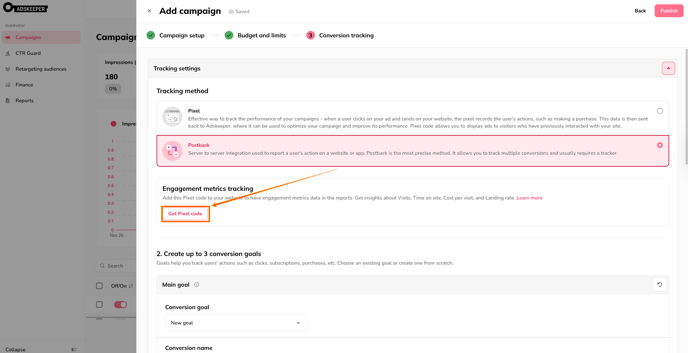
3. Add the Pixel on all pages of the website, placing it high within the <body> section.
4. In the reports mentioned above, use the column picker to add metrics.
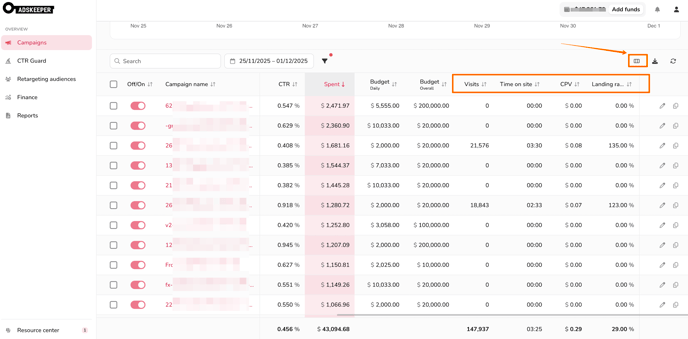
Once these steps are completed, no additional adjustments are required. As soon as the Pixel begins working and users start visiting your site from Adskeeper ads, data will automatically flow into your statistics.
FAQ
1. As an advertiser, how can I view engagement data in the statistics?
After the Adskeeper Pixel is placed across your website pages, engagement data begins collecting automatically. To view it, simply add the relevant metrics, such as Visits, Time on Site, Landing Rate, and CPV, to your reports using the column picker.
2. Is it possible to use another method for conversion tracking and still place the Pixel for engagement metrics?
Yes. You can freely combine your preferred conversion tracking method with the Adskeeper Pixel. The Pixel will continue collecting engagement data even if conversions are tracked via Postback.
3. Can the engagement data be detected by the Adskeeper Pixel Helper?
Not directly. The Pixel Helper confirms that the Pixel is present on the page and that the click ID is detected, but it does not display engagement metrics itself.
4. Are additional interface settings required for engagement metrics, as they are for conversion tracking?
No. Once the Pixel is added to all website pages, engagement metrics start collecting automatically, no extra configuration is needed.
5. How is a funnel handled when it involves more than one domain?
A new session is created for each domain, and engagement time is tracked per session. This only works if the click ID is passed between domains, ensuring session continuity.
6. Is it possible to use Google Tag Manager to set up the Pixel?
Yes. The Pixel can be placed through Google Tag Manager, as long as it is applied across all website pages. If implemented correctly, engagement tracking will function without any issues.
7. Can an advertiser’s external analytics tools show different results from Adskeeper’s engagement metrics?
Yes. Some differences are normal and not a cause for concern. Each analytics tool uses its own measurement methods and technologies, so variations in engagement data are expected.