![AdsKeeper_Logo_Help_Center.svg]](https://help.adskeeper.com/hubfs/AdsKeeper_Logo_Help_Center.svg)
Buy Traffic Evenly During the Day
Legacy Behavior for the Existing Campaigns
Overview
The Budget Type setting defines how campaign delivery is controlled and what limits, if any, are applied during the campaign lifecycle. Three budget management options are available:
1. UnlimitedSelect it when no budget or click restrictions are required. This means the campaign can continue receiving traffic until the user stops it manually, or the campaign reaches its end date, if an end date is set. Because no limits are required, budget and click limit fields are not displayed when Unlimited is selected.
2. BudgetChoose Budget when campaign performance should be controlled by spending. In this configuration, you specify the maximum amount the campaign is allowed to spend.
3. ClicksChoose Clicks when campaign performance should be limited by the number of clicks. In this configuration, you define the maximum number of clicks the campaign may receive.
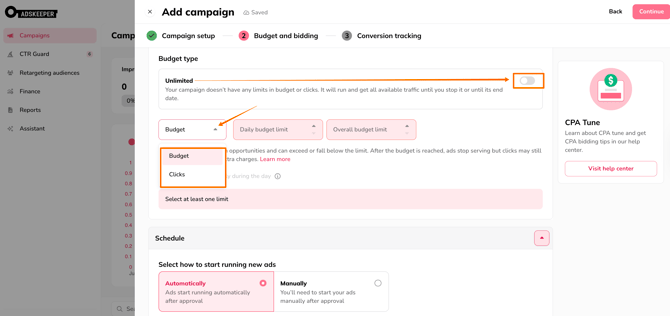
When Budget or Clicks is selected, you must also determine how the limit will be applied:
- Daily – applies a limit for each individual day.
- Overall – applies one total limit across the entire campaign.
For newly created campaigns, only one limit mode can be selected: Daily or Overall.
This simplified setup eliminates the need to manage multiple limit combinations and reduces manual adjustments during campaign execution.
If the Unlimited option is later disabled, the campaign returns to a restricted configuration where you must select:
- Budget or Clicks
- Daily or Overall
Understanding Daily Limits
Use the Daily option when you want to define the maximum amount of spending or click activity allowed within a single day.
With this setup, the platform evaluates performance only for the current day. Traffic continues to be delivered until the daily threshold is reached. Once the limit is reached, delivery pauses for the remainder of the day and resumes automatically the next day.
A Daily limit controls what can be spent or delivered in one day. It does not define a total limit for the full campaign.
Setup Process:
- Select Budget or Clicks as your campaign limit
- Choose the Daily option
- Enter your desired daily budget or click limit
- Your campaign will run until the daily limit is reached
- Once the limit is met, delivery pauses for the rest of the day
- The limit resets automatically the next day, and delivery resumes
Use Daily budget limit when the goal is to control the campaign day by day. This option works well when the user wants a clear daily cap and prefers to review campaign performance regularly.
Example 1: Budget limit
Daily budget = $40
The campaign can spend up to $40 today. Once that amount is reached, delivery stops until the next day. Tomorrow, the same limit applies again.
Example 2: Budget limit
Daily budget = $100; The campaign duration = 7 days.
If the campaign reaches its limit every day, it may spend up to $100 per day. Over 7 days, total spend could reach about $700. There is no separate lifetime budget cap unless the user selects Overall instead.
Example 3: Clicks limit
Daily click limit = 400
The campaign can receive up to 400 clicks today. Once that number is reached, delivery pauses until the next day.
Example 4: Clicks limit
Daily click limit = 1,000; The campaign runs for 5 days
If the campaign reaches its limit every day, it may receive up to 1,000 clicks per day. Over 5 days, that could result in about 5,000 clicks. There is no separate total click cap unless the user selects Overall instead.
Understanding Overall Limits
Use the Overall option when a campaign must achieve a total spend or click target within a defined timeframe. This approach is designed for campaigns with fixed objectives and specific start and end dates.
Examples:
- Spend $2,000 between June 1 and June 15.
- Generate 8,000 clicks between July 1 and July 10.
When using Overall limits, define:
- Start date
- End date
- Total budget or total click limit
The platform then automatically manages delivery across the selected dates. This means that you set the total budget or total click limit for the full campaign period, and the platform calculates how much should be delivered each day to stay on track.
The goal is to distribute the total limit evenly across the selected dates, instead of allowing the campaign to spend or deliver everything as quickly as possible.
The system calculates an effective daily pace based on how much budget or how many clicks remain and how many days are left until the end date.
Simply put, the formula works as follows:
“Remaining total limit / Remaining days = Effective daily pace”
So if a campaign has $1,000 left to spend and 10 days remaining, the effective daily pace is about $100 per day. If later the campaign has $600 left and 5 days remaining, the pace becomes about $120 per day.
The same logic applies to clicks.
This means an Overall limit controls the total campaign target, while the platform automatically calculates how much should be delivered each day to reach that target by the end date.
By default, the platform distributes delivery evenly throughout the day, helping prevent traffic from being spent too quickly in the early hours.
How Overall limits work:
- Select Budget or Clicks as your campaign limit
- Choose the Overall option
- Enter the total limit and set your campaign dates
- The system automatically spreads the remaining budget or clicks across the remaining campaign days
- If delivery is lower than expected early on, daily pacing may increase later to stay on track
- Any adjustment to campaign dates or total limits automatically recalculates pacing
Automatic Recalculation
The effective daily pace is recalculated whenever:
- a new day begins;
- the total budget or click limit changes;
- campaign dates are modified.
If changes are made during the day, the updated pacing takes effect immediately.
When delivery underperforms earlier in the campaign, the remaining budget or clicks are redistributed across the remaining days. This can result in a higher daily pace later in the flight period.
Overall pacing is designed to minimize the need for manual monitoring and adjustments throughout the campaign. It helps ensure more consistent performance by reducing the risk of a campaign:
- Spending or delivering too much too early
- Progressing too slowly and missing the end date
- Requiring frequent manual recalculations to stay on track
Example 1: Overall Budget
Overall budget = $500; Campaign dates = May 1 to May 5.
The campaign has 5 days to spend $500. The system paces delivery across those dates instead of allowing the campaign to spend the full amount as quickly as possible.
Example 2: Overall Budget
Overall budget = $900; Campaign dates = June 1 to June 9.
At the beginning, the effective pace is about $100 per day. If after 3 days the campaign has spent only $240, the remaining $660 is redistributed across the remaining 6 days. In that case, the effective daily pace may increase to help the campaign catch up.
Example 3: Overall Clicks
Overall click limit = 4,000; Campaign dates = June 1 to June 8.
The system paces delivery across those 8 days instead of allowing the campaign to consume the full click limit as fast as possible.
Example 4: Overall Clicks
Overall click limit = 12,000; Campaign dates = July 1 to July 12.
At the beginning, the effective pace is about 1,000 clicks per day. If after several days the campaign is behind plan, the system redistributes the remaining clicks across the remaining days so delivery can catch up.
Supported Bidding Strategies
Available limit behavior depends on the selected bidding strategy (Manually or Target CPA and Max Conversions).
With Manual bidding, you can work with the standard limit setup: Unlimited, Budget, and Clicks. Where supported, choose either Daily or Overall.
For CPA-based bidding strategies, the same general Daily or Overall logic applies where limits are available. If Overall is used with Target CPA or Max Conversions, the platform still paces the total budget across the selected date range.
At the same time, intra-day delivery is managed by the optimization algorithm rather than by a separate manual pacing control.
Buy Traffic Evenly During the Day
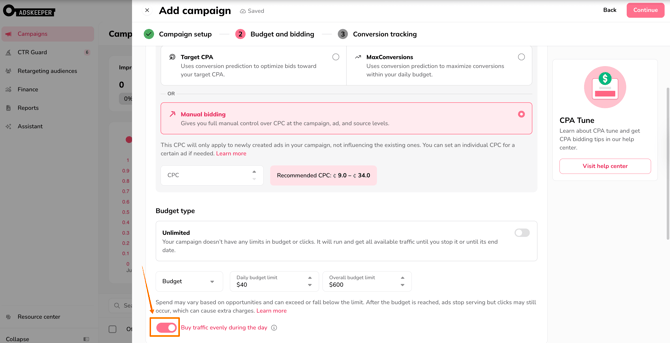
Buy Traffic Evenly During the Day is an additional pacing option available for campaigns using Manual bidding with a Daily limit. When enabled, the platform spreads your spend more evenly throughout the day. This helps prevent your campaign from exhausting its daily budget or reaching the click limit too early.
This option is ideal for campaigns that require steady, consistent delivery throughout the day rather than faster delivery in the early hours. When enabled, the platform distributes traffic more evenly, reducing heavy delivery at the start of the day.
|
The Buy traffic evenly during the day toggle is available only when |
The Buy traffic evenly during the day toggle is unavailable or disabled when |
|
|
For campaigns using the Overall limit, the platform automatically manages smoother delivery across the campaign period. Users do not need a separate toggle for this mode.
For Target CPA and Max Conversions, intra-day delivery is managed by the bidding algorithm, so this option is not available.
In other words, this toggle is a Manual bidding + Daily limit option.
Legacy Behavior for the Existing Campaigns
The new limit model applies to new campaigns. Some existing campaigns may still temporarily use older limit combinations created before this update. Those campaigns may continue to work under legacy behavior until they are updated through the migration process.
For the new campaign setup, the intended logic is:
- Unlimited, or
- Budget / Clicks + Daily, or
- Budget / Clicks + Overall
But not Daily + Overall together.
Best Practices
Use Daily when:
- You need a clear limit for each day
- You actively monitor and manage campaigns on a daily basis
- You want simple, direct control over daily spend or click volume
Use Overall when:
- You have a fixed total budget or click target
- Your campaign runs within specific start and end dates
- You want more consistent delivery across the entire campaign period
- You prefer to avoid manual recalculations of daily limits
Use Unlimited when:
- You don’t want your campaign to stop due to budget or click limits
Summary
- Unlimited means the campaign runs without budget or click limits.
- Budget limits delivery by spend.
- Clicks controls delivery based on click volume.
- For Budget and Clicks, new campaigns use either Daily or Overall.
- Daily controls delivery one day at a time.
- Overall distributes a total budget or click limit across a selected date range.
- Overall pacing automatically recalculates daily targets to keep campaigns aligned with objectives.
- New campaigns cannot use Daily and Overall limits simultaneously.