![AdsKeeper_Logo_Help_Center.svg]](https://help.adskeeper.com/hubfs/AdsKeeper_Logo_Help_Center.svg)
AdSpace Dashboard Settings
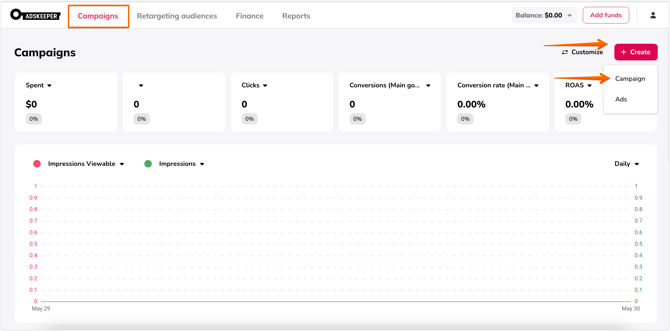
1. Start by creating (or editing) a campaign in the Adskeeper dashboard.
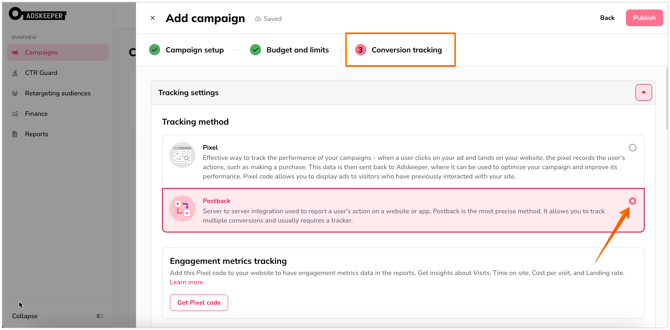
2. At the Conversion tracking step, choose the Postback option.
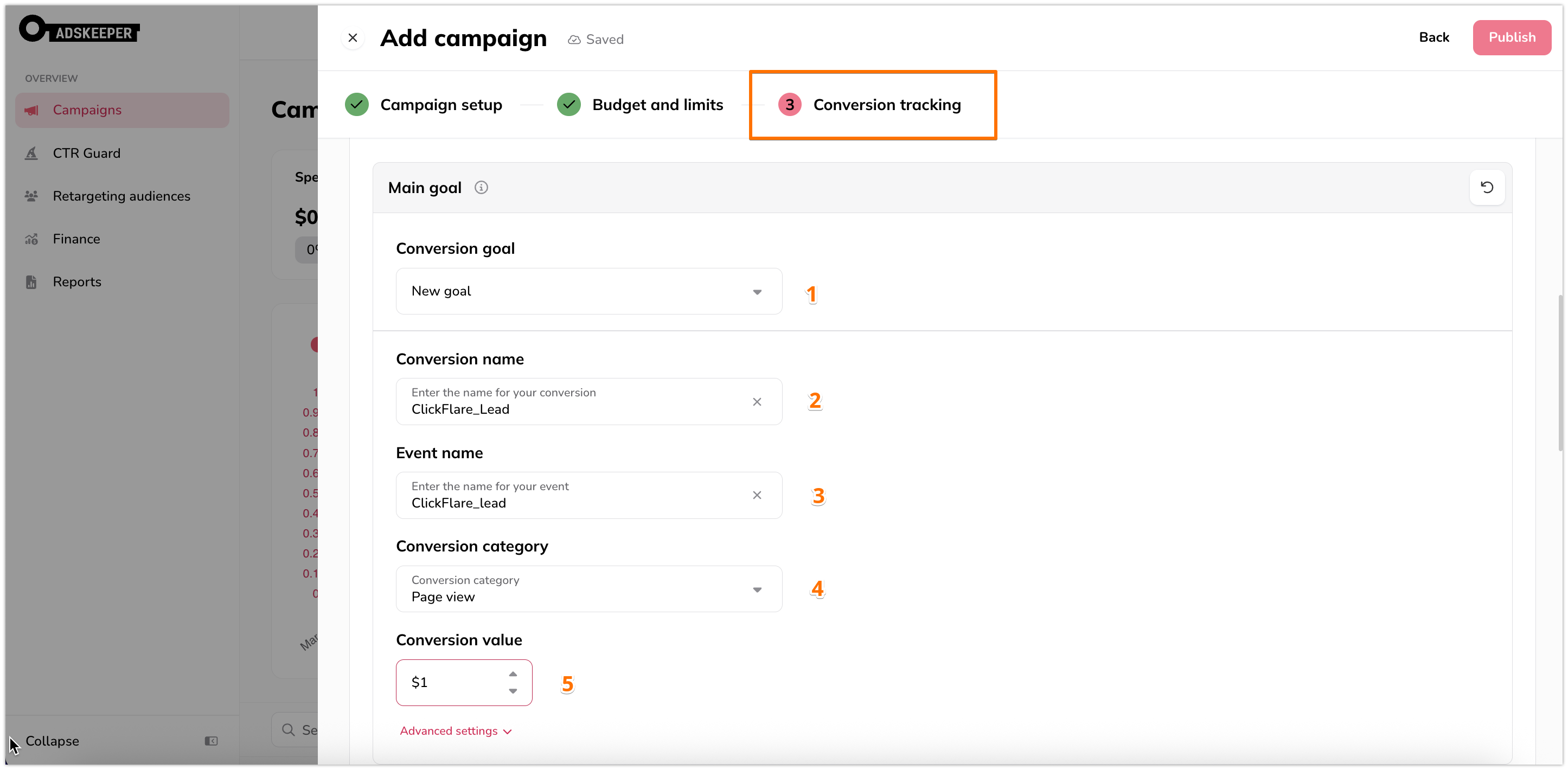
3. Set up the Main goal.
-
Conversion Goal: Create a new goal or select an existing one.
-
Conversion Name: This name will be used to display conversions in your dashboard.
-
Event Name: We recommend a unique name, though any name will work.
-
Conversion Category: Select the appropriate category.
-
Conversion Value: Assign a value if needed.
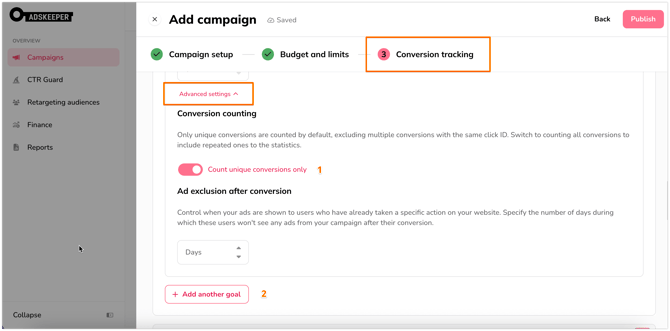
4.1 Configure additional settings under the Main Goal, Additional 1, and Additional 2 sections.
4.2 Two additional goals are available for tracking multiple conversion steps.
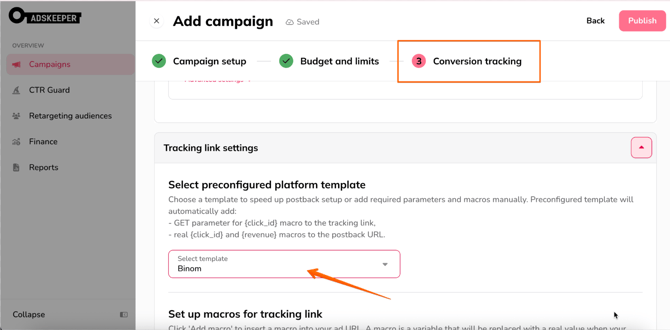
5. Tracking Link Settings: Select the Binom template.
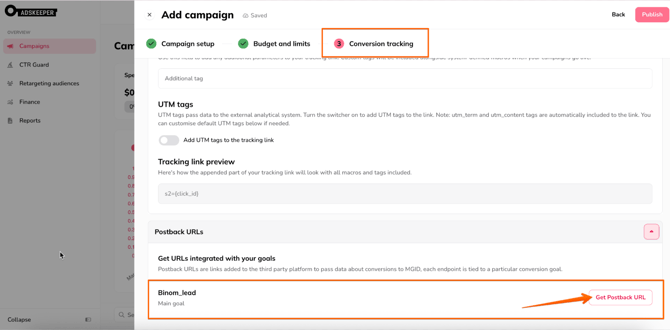
6. Click Get Postback URL.
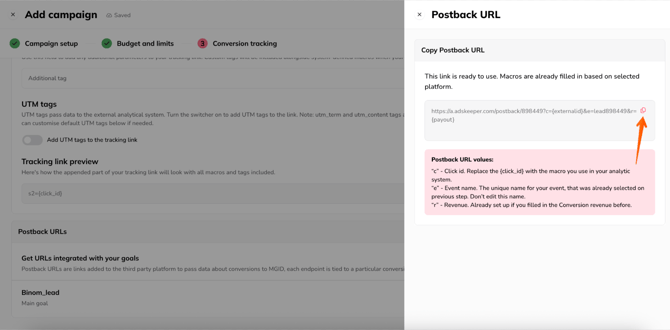
7. Copy the generated postback URL and enter it on the Binom side (instructions described below).
Binom Tracker Settings
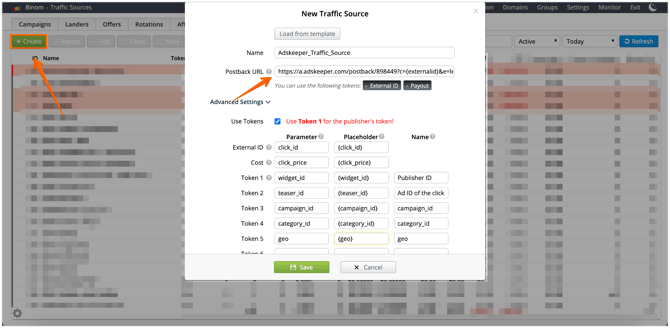
1. In your Binom account, create a new Traffic Source. Paste the Postback URL from Step 7, fill in the parameters/macros as shown in the interface, and click Save.
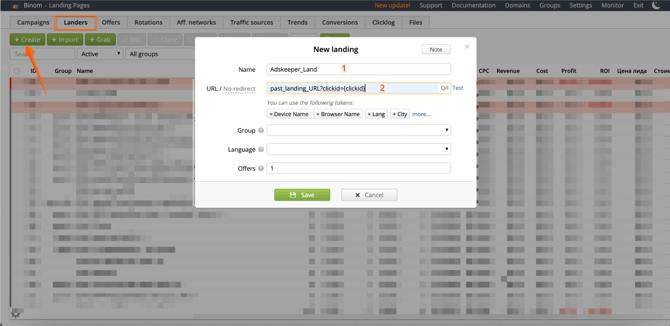
2. Create a Lander: Name it, add the Landing URL, and ensure you add the click_id parameter to the URL. Click Save.
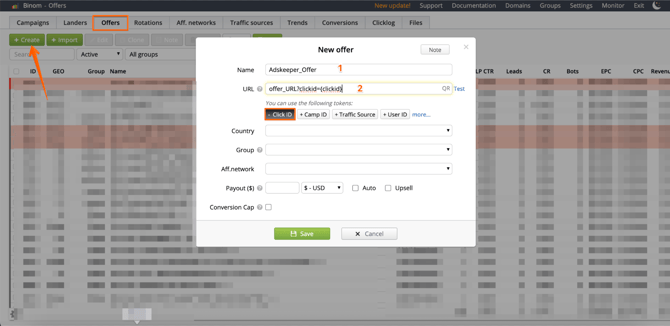
- Name the offer.
- Paste the offer URL and add the clickI_id parameter.
- Fill in all the required fields and Save.
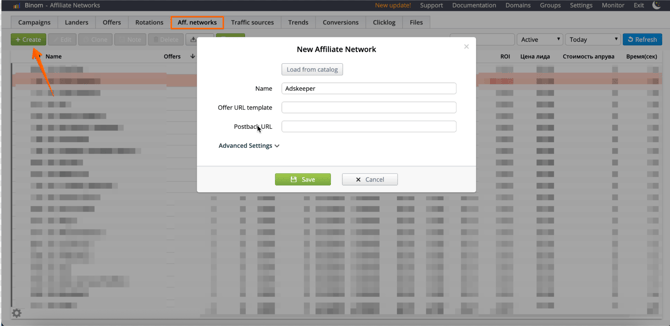
4. Add an Affiliate Network: Choose one from the catalog or create a new one from scratch. Click Save.
5. Create a new campaign.
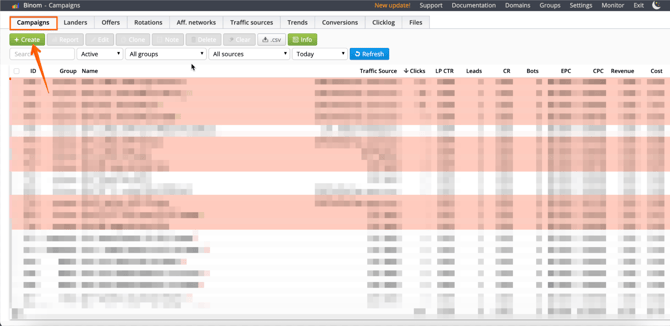
6. Fill in all the required fields:
- Name the campaign.
- Choose a Group or add a new one.
- Select Adskeeper as the Traffic Source.
- Add your Lander.
- Add your Offer.
- Click Save.
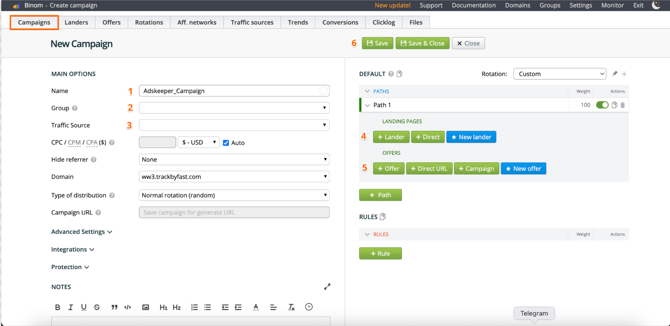
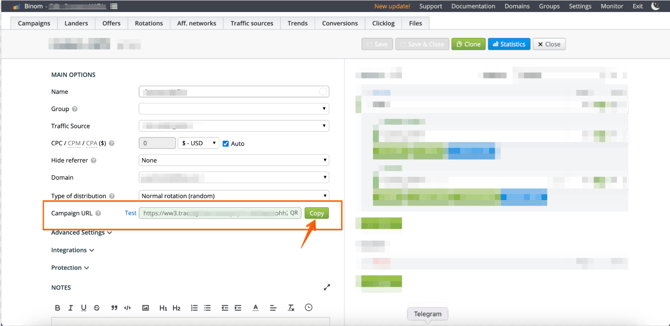
7. Once saved, the campaign link will become available. Copy this link and use it to create your teasers in the Adskeeper dashboard.