![AdsKeeper_Logo_Help_Center.svg]](https://help.adskeeper.com/hubfs/AdsKeeper_Logo_Help_Center.svg)
Overview
Automatic billing automatically tops up your account balance when it reaches a specified threshold. This helps prevent campaign interruptions due to insufficient balance and ensures continuous ad delivery without manual payments.
You can access the Automatic Billing feature in the Profile Settings section. Navigate to your profile, click Settings, and find the Billing section.
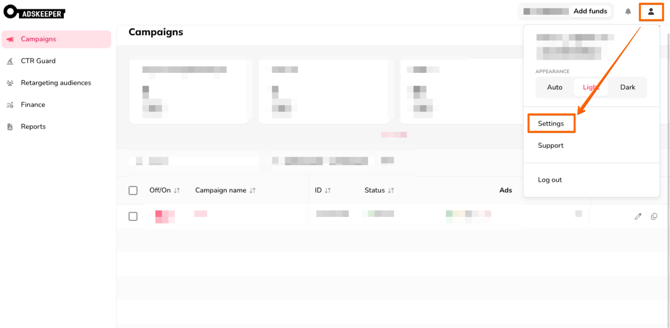
Here you can configure Automatic Billing.
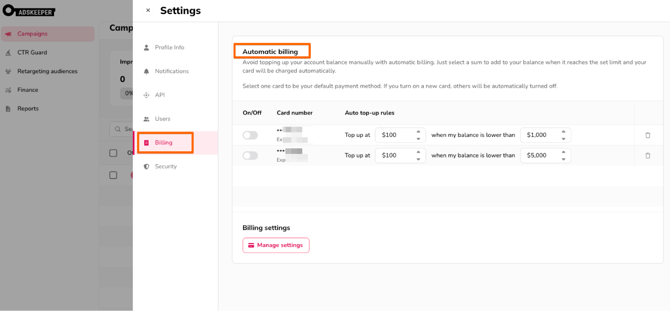
Managing Automatic Billing
Managing Automatic Billing is available only in the Billing section, where you can:
- Enable Automatic Billing;
- Disable Automatic Billing;
- Change the active card;
- Set or update the top-up amount;
- Set or update the balance threshold.
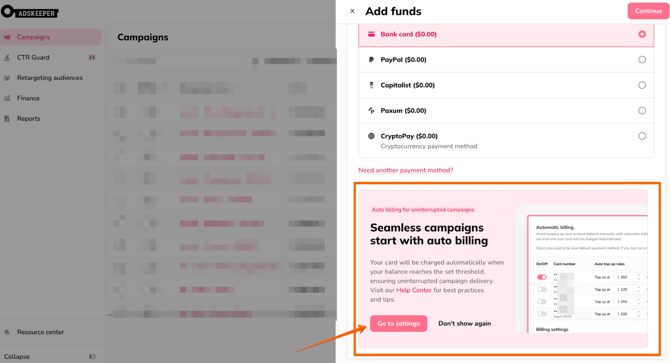
The auto top-up rule follows this format:
“Top-up at X amount When my balance is lower than Y amount.”
Where:
- Top-up at = the amount that will be charged automatically.
- When my balance is lower than = the balance threshold that triggers the charge.
Both fields are required. Automatic Billing can only be activated when valid values are entered.
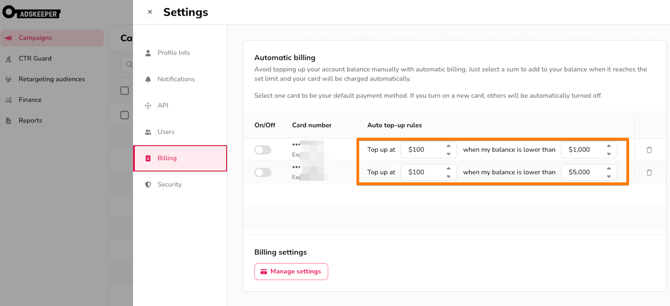
Once your account balance drops below the defined threshold, the system automatically charges your selected card for the specified amount.
Important details:
- The charge is triggered only when the balance becomes lower than the set threshold.
- If the card has insufficient funds or the bank declines the transaction, the charge will not be completed.
Payment Setup Essentials
Bank card requirements
A card appears in the Billing section only after at least one successful transaction has been completed with that card. If no successful payment exists, the card cannot be used for Automatic Billing.
Only one card can have Automatic Billing enabled at a time. If you activate Automatic Billing for a new card, the previously active card will be automatically disabled.
A card can be removed from your account only if Automatic Billing is turned off for that card.
Minimum Top-Up Amount
Each currency has a minimum allowed top-up amount (for example, $100). If you enter a lower amount, the system will automatically reset it to the minimum and display a notification message.
Email Notifications
To keep you informed about your billing status, the system sends email alerts in specific situations.
Failed Automatic Charge
If multiple automatic charge attempts fails, the automatic billing is disabled. You will receive an email explaining that your payment was unsuccessful. The email will include a direct link to the Billing section to update your card or re-enable the feature.
To avoid interruptions, set a reasonable balance threshold that gives you enough time to resolve potential payment issues.
Card Expiration Warning
If the card used for automatic billing expires within 30 days, you will receive a reminder emai to update or replace your card to avoid failed charges. If automatic billing is enabled for a card with less than 30 days until expiration, the warning email is sent immediately after activation.
To ensure uninterrupted campaigns, regularly monitor your card’s expiration date and review your billing settings after updating payment details.